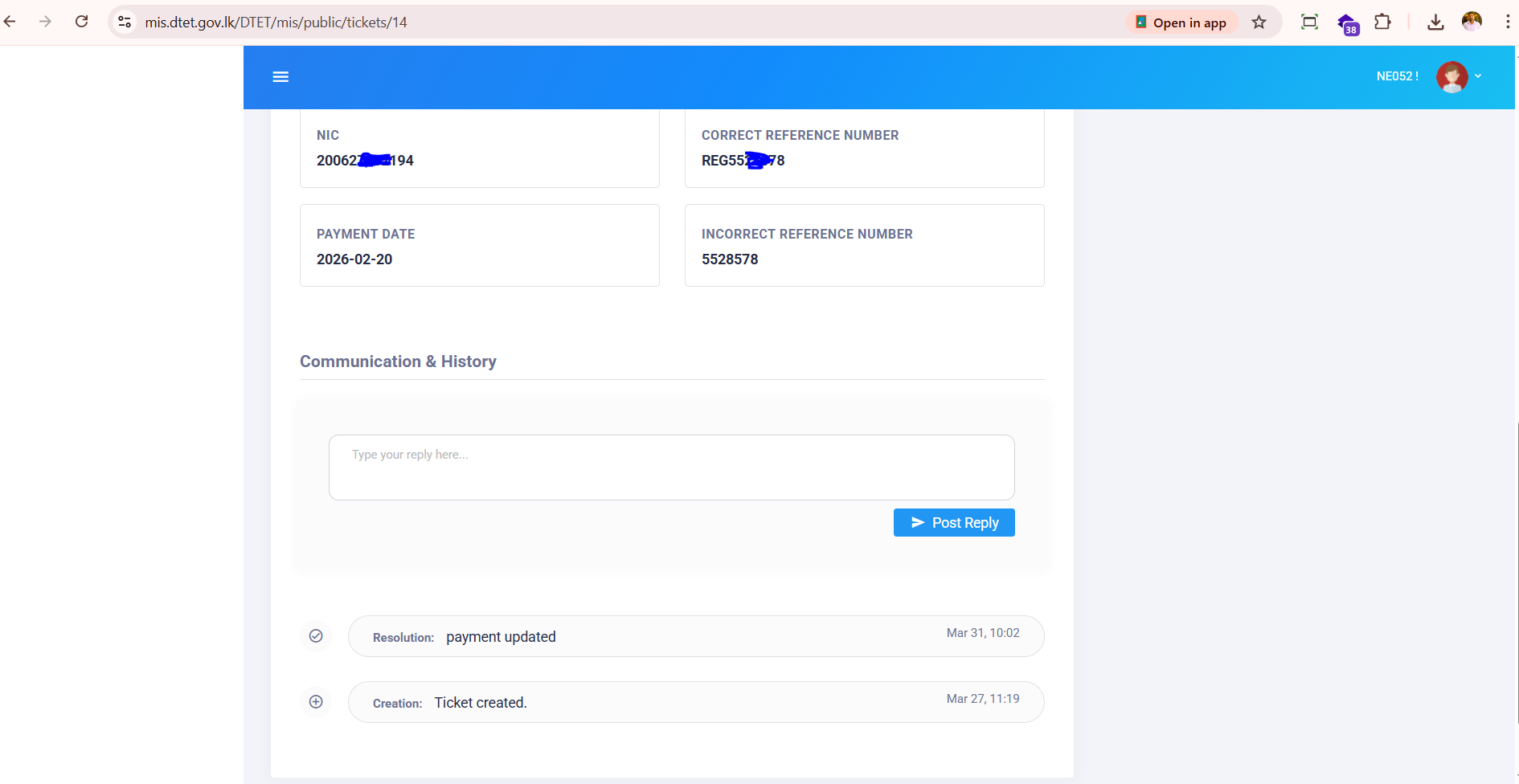
Tickets: User Manual
How to submit a support ticket, provide info, and track resolution.
Submitting a Support Ticket
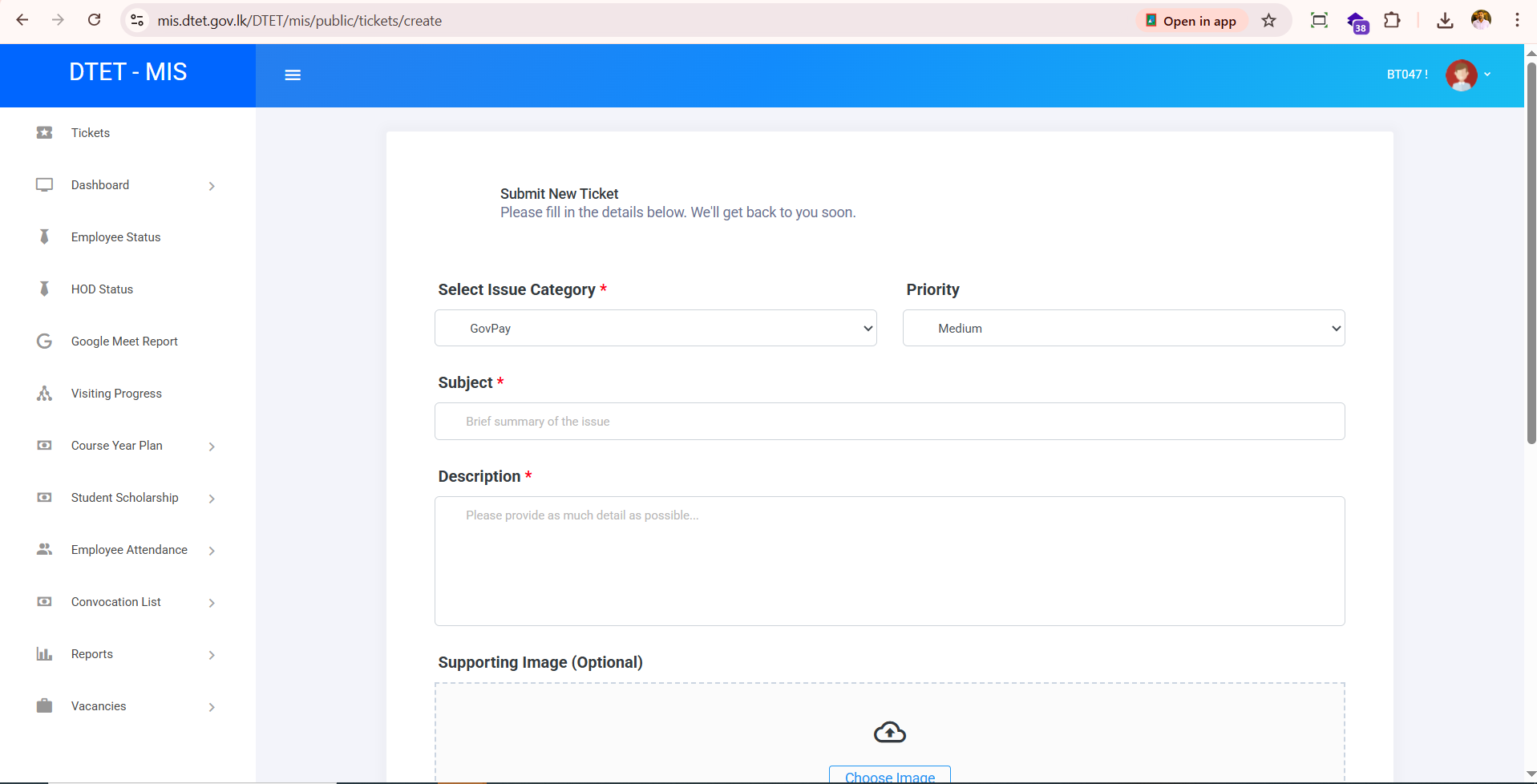
Whenever you face a system bug, hardware issue, or need general support, you can raise a Ticket directly from the sidebar.
- Find the Tickets link on the sidebar.
- Click on Create Ticket.
- Select the relevant Category to ensure the right team is notified. Depending on the Category, extra fields may appear.
- Enter a clear Title and Description for your issue.
- Click Submit to create the ticket.
Tracking and Replying
You can monitor status changes to your tickets from your Tickets Dashboard.
- Navigate to Tickets -> My Tickets.
- A table displays all tickets you've created, along with their current status (e.g., Open, Assigned, Resolved).
- Select a specific ticket to view the conversation history.
- You can supply more information by typing a message in the "Reply" box and submitting it.
You will be notified when an admin replies or resolves your ticket!