Applicant User Manual
A complete guide to navigating, applying, and managing vacancies.
Accessing Available Vacancies
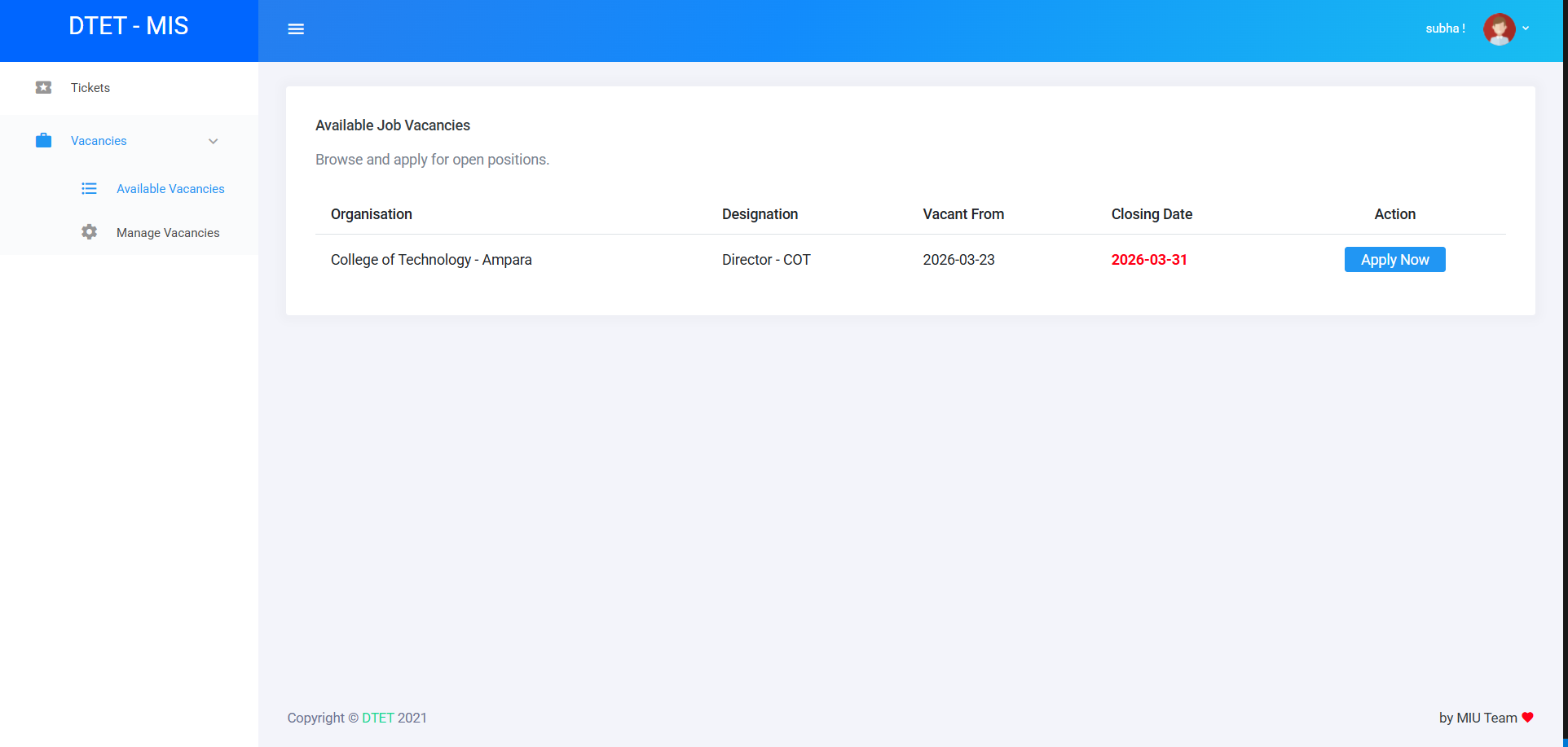
To view open positions, navigate to the Vacancies menu on the sidebar.
- Log in to the DTET MIS system.
- Locate the Vacancies link on the left-hand navigation sidebar (usually under Tickets).
- Click on Available Vacancies to view active posts.
Searching and Applying
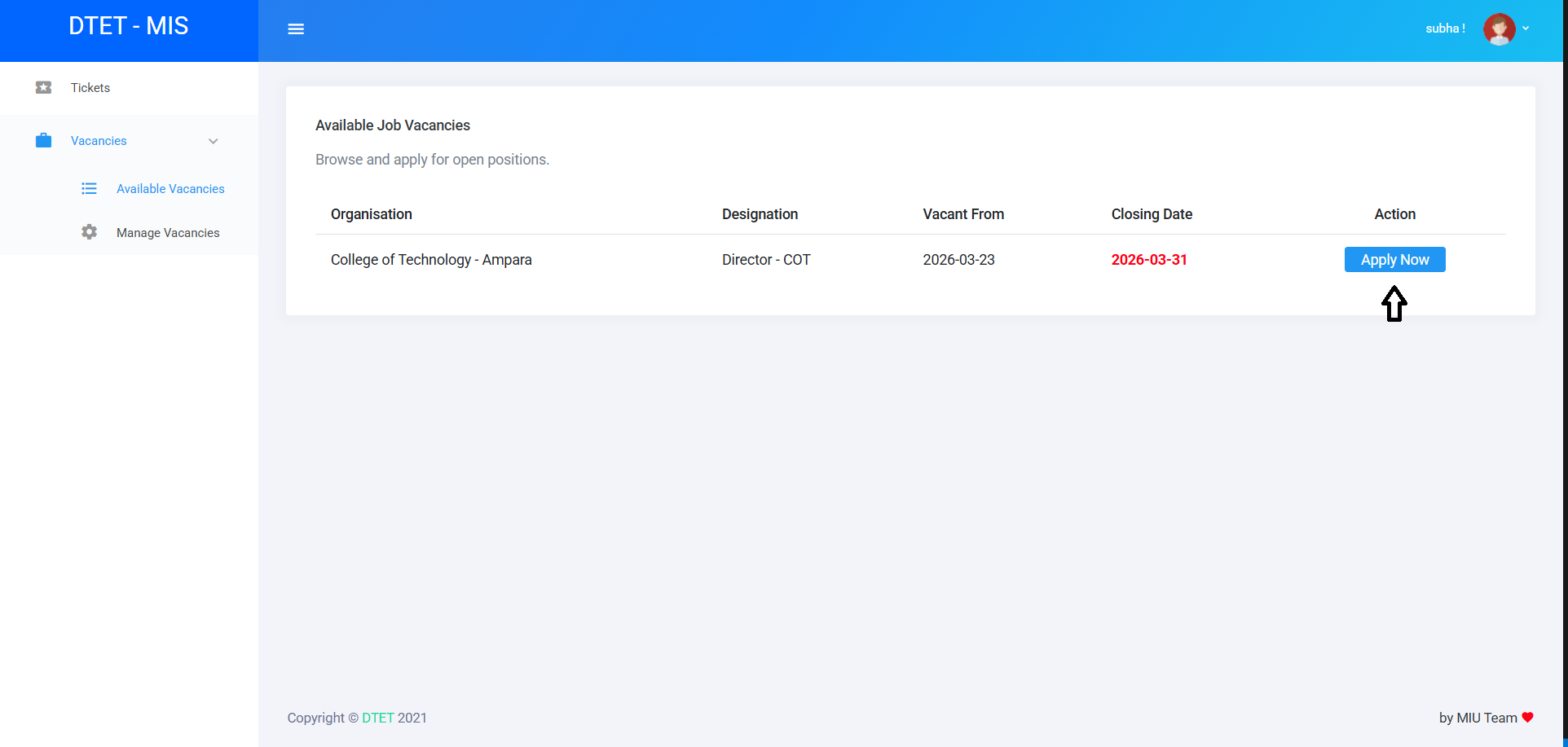
The Vacancies list shows all active posts up to their closing date. Click the Apply button on a post to begin.
Filling the Application
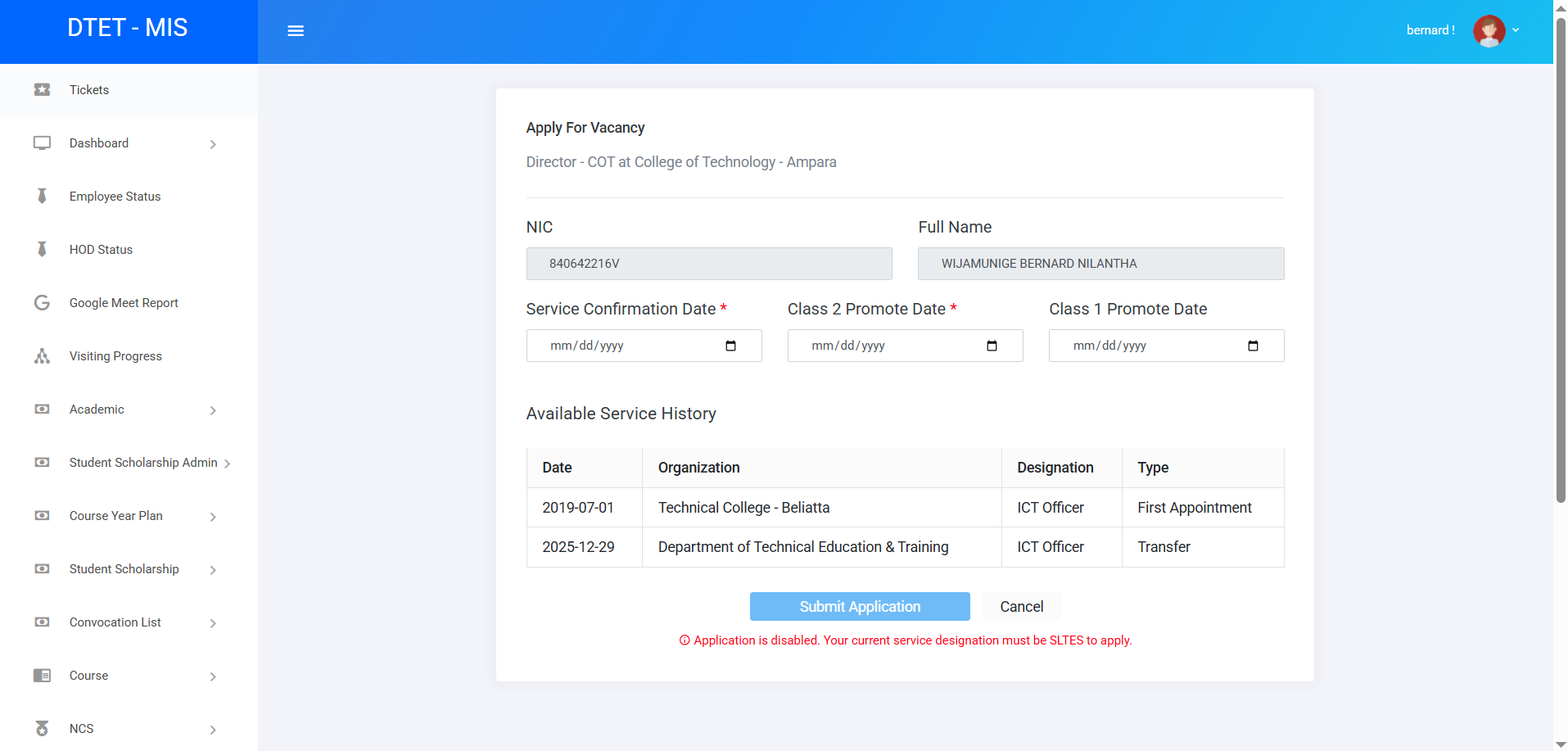
Your NIC and Name are automatically populated. You must fill in:
- Service Confirmation Date (Required)
- Class 2 Promote Date (Required)
- Class 1 Promote Date (Optional)
Eligibility Verification: The
system will display your Service History. If your current active designation record does
not have the
SLTES Service Code, the Submit button will automatically be
disabled.
Withdrawing an Application
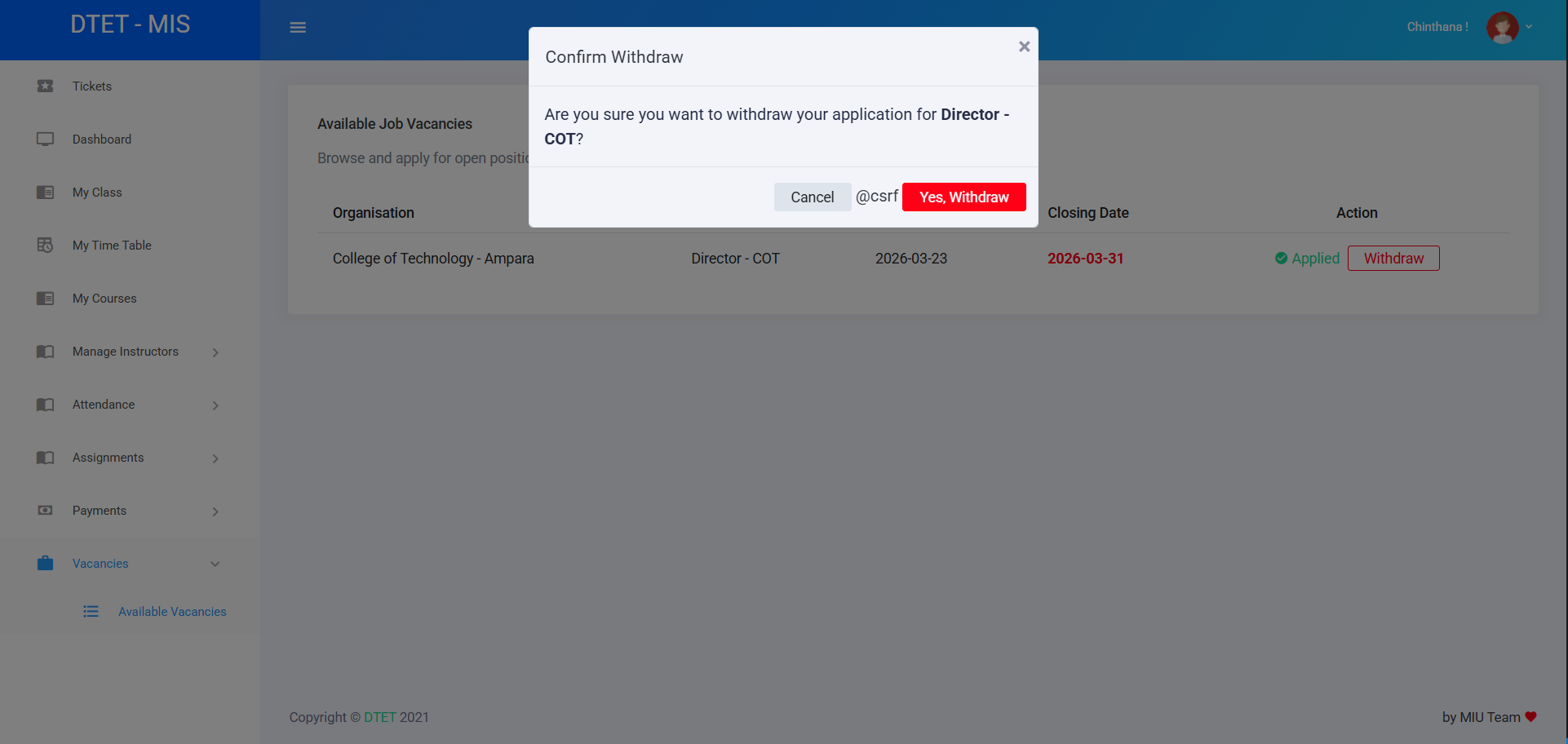
If you have changed your mind, you can withdraw a submitted application before the closing date.
- Navigate back to the Available Vacancies page.
- Determine which vacancy you applied for; the apply button will now be replaced by a Withdraw button.
- Click it to retract your application.
Important: You cannot withdraw an
application after the closing date has passed!